QA, Visual QA and acceptance tests
Code, Visual and Interactive QA modes, and the executable acceptance tests.
A build is checked three ways: QA reviewers read the code, acceptance tests run against the app, and in Visual or Interactive mode an agent looks at the running app. All three feed the Quality Scorecard.
QA reviewers#
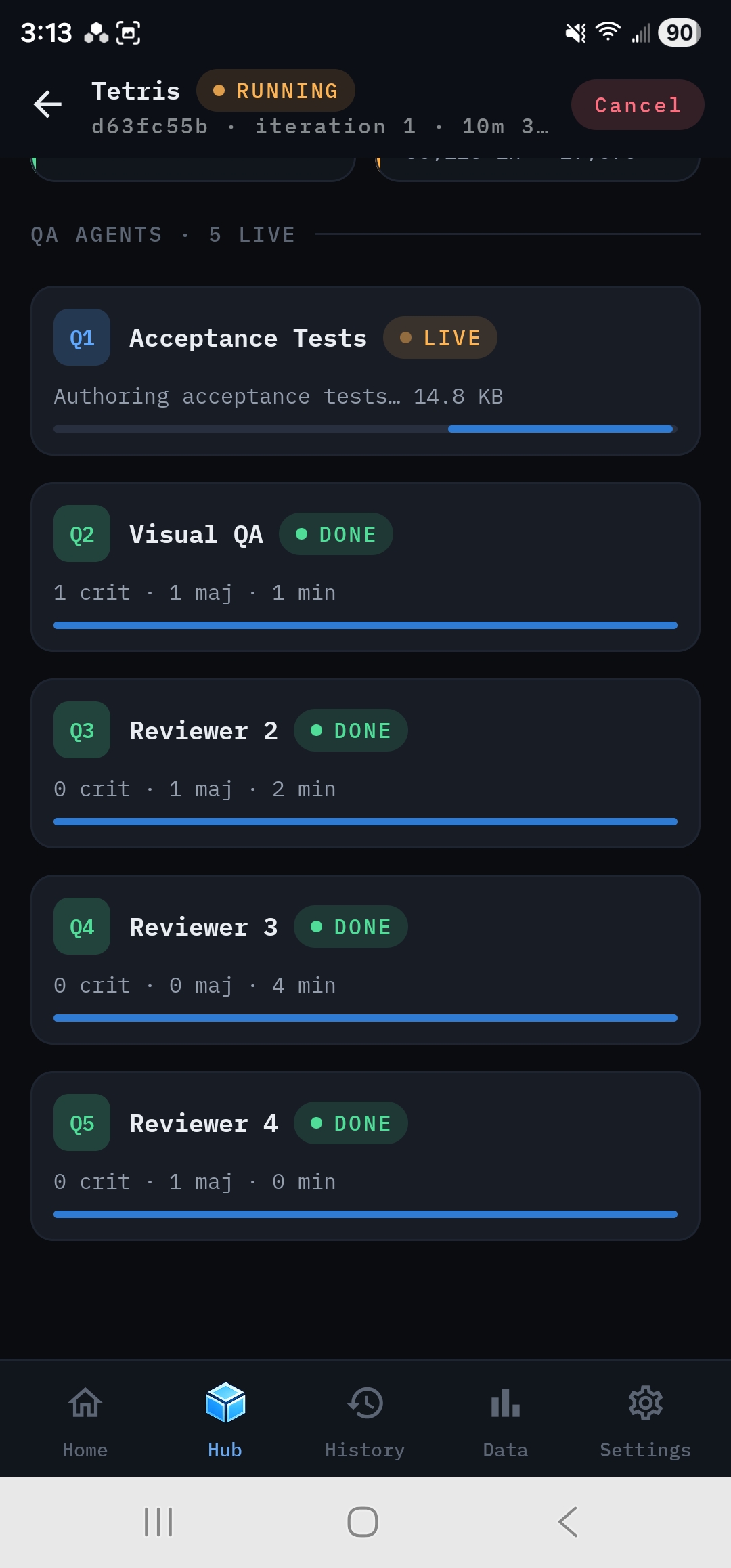
In every iteration, several QA reviewers review all the files independently and in parallel. The default is 3; set the number under Configuration → Orchestration → QA agents. Each reviewer reports issues, each with a dimension and a severity, plus a pass or fail verdict for each acceptance criterion. The Feedback Coordinator then merges the reviews and removes duplicates.
More reviewers means more issues found and more consistent verdicts, but it also means more cost per iteration.
If a reviewer's reply is cut off by its output-token limit, the app keeps whatever it can read. If nothing is usable, that review is marked unreadable, not scored instead of counting as a clean review. If you see this often, raise the QA role's max output tokens or use a model with a larger output limit.
Acceptance tests#
The Test Author turns your requirements' functional acceptance criteria into executable JavaScript checks. During QA, a deterministic test runner loads the generated app in a hidden, sandboxed browser view on your phone and runs those checks. The pass and fail results feed the Correctness dimension alongside the reviewers' verdicts.
- Tests run in every QA mode, including the default Code mode.
- The test suite is saved with the run as
tests/acceptance-tests.js, so you can read it in Output. - If a check is broken, for example because it tests the wrong thing or can't run, it's dropped and rewritten in the next iteration instead of failing the build forever.
- When a note changes the acceptance criteria, only the new or changed criteria get new checks. The rest of the suite is kept.
This is why acceptance criteria that can be answered yes or no make such a difference. They become tests that actually run.
QA modes#
Choose how the running app is examined under Configuration → QA Mode.
- What happens
- Reviewers inspect the source only. Nothing is rendered for review, and the Visual QA role doesn't run.
- Cost
- Lowest
- What happens
- The app is rendered in a hidden browser view on your phone and screenshotted at several screen sizes. Visual QA reviews the screenshots and the rendered page.
- Cost
- Adds one Visual QA call per iteration, with images
- What happens
- Everything in Visual, plus the app is used: the first six visible buttons and links are clicked, with a screenshot after each click.
- Cost
- Most, because it sends the most images
Visual and Interactive modes catch problems that reading the code misses: a layout that collapses on a phone-sized screen, a button that renders but does nothing, text you can't read against its background.
Screenshots are saved with the run under screenshots/, for example screenshots/iter-2-mobile.png. You'll find them in Output and in the exported zip.
Previewing the app yourself#
Automated QA doesn't replace trying the app. At every check-in, Preview opens the current build in App Preview, where you can play with it at phone, tablet or desktop widths before deciding whether to accept. See Review output and preview the app.