Review output and preview the app
Browse generated files, run the app on your phone, and export everything.
Everything a run produces stays on your phone: the source files, the docs, the tests and the screenshots. You can read them in Output, try the app in App Preview, and export the whole run as a zip.
Open Output#
- From a check-in card: Output, under Review the build first.
- From a finished run: Output at the bottom of the dashboard.
- From History: tap the run, then Browse output.
Browse the files#
Output shows the run's file tree, with a file count in the header, for example Tetris · 6 files. Tap a folder to open or close it, and tap a file to read it.
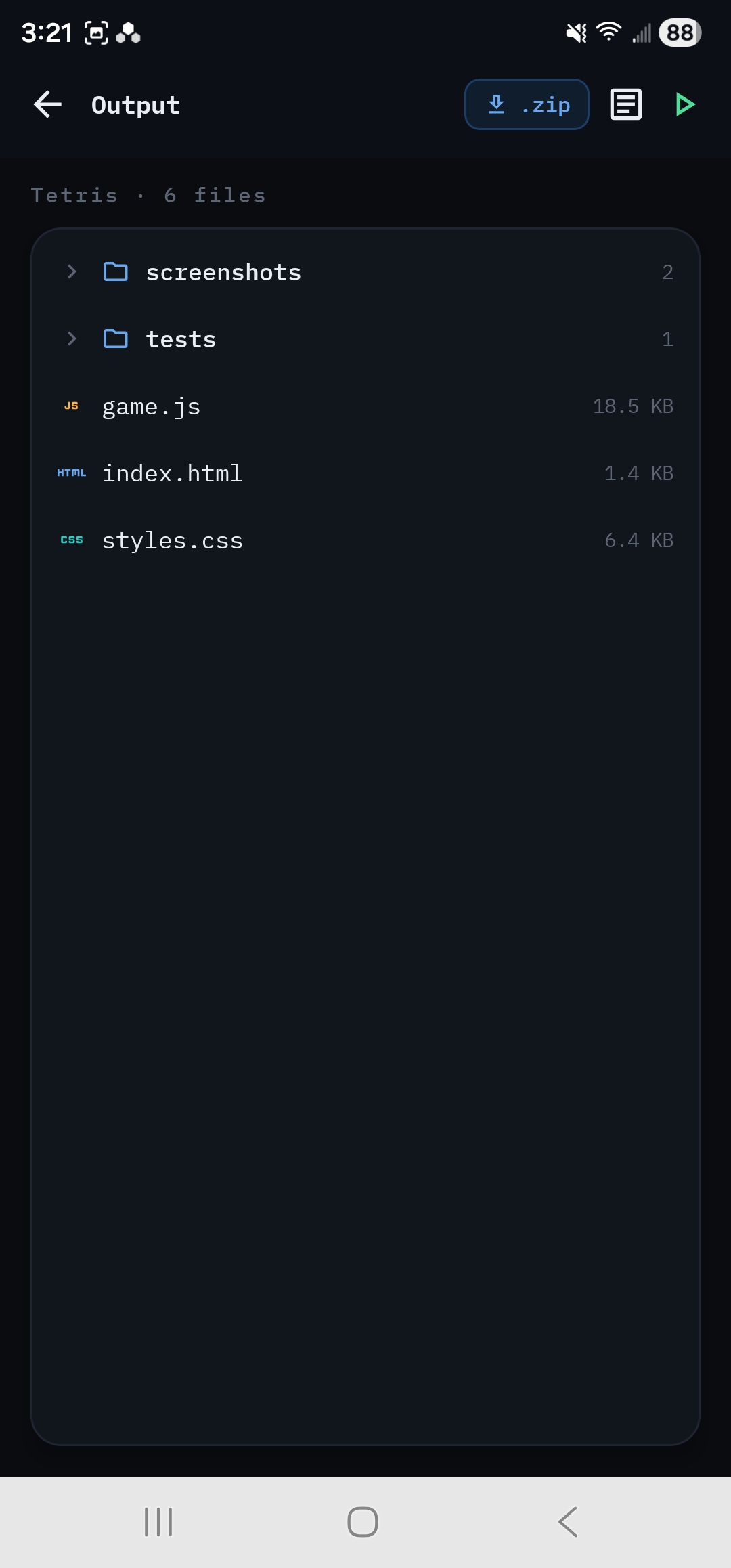
- Source files are shown in full. Use the copy button to copy a file's contents to the clipboard.
- Screenshots (
.png, from Visual or Interactive QA) open as images. docs/holdsSUMMARY.md(the README the Summary Generator wrote),requirements.md(the brief the run built from) andnotes.mdif you added notes.tests/acceptance-tests.jsis the executable test suite the Test Author wrote.
The icons at the top right of Output are zip (export), Run log and Preview app.
Preview the app#
App Preview runs the generated app on your phone in a sandboxed web view. Open it with Preview on a check-in card, Open preview on a finished run, or the play icon in Output.
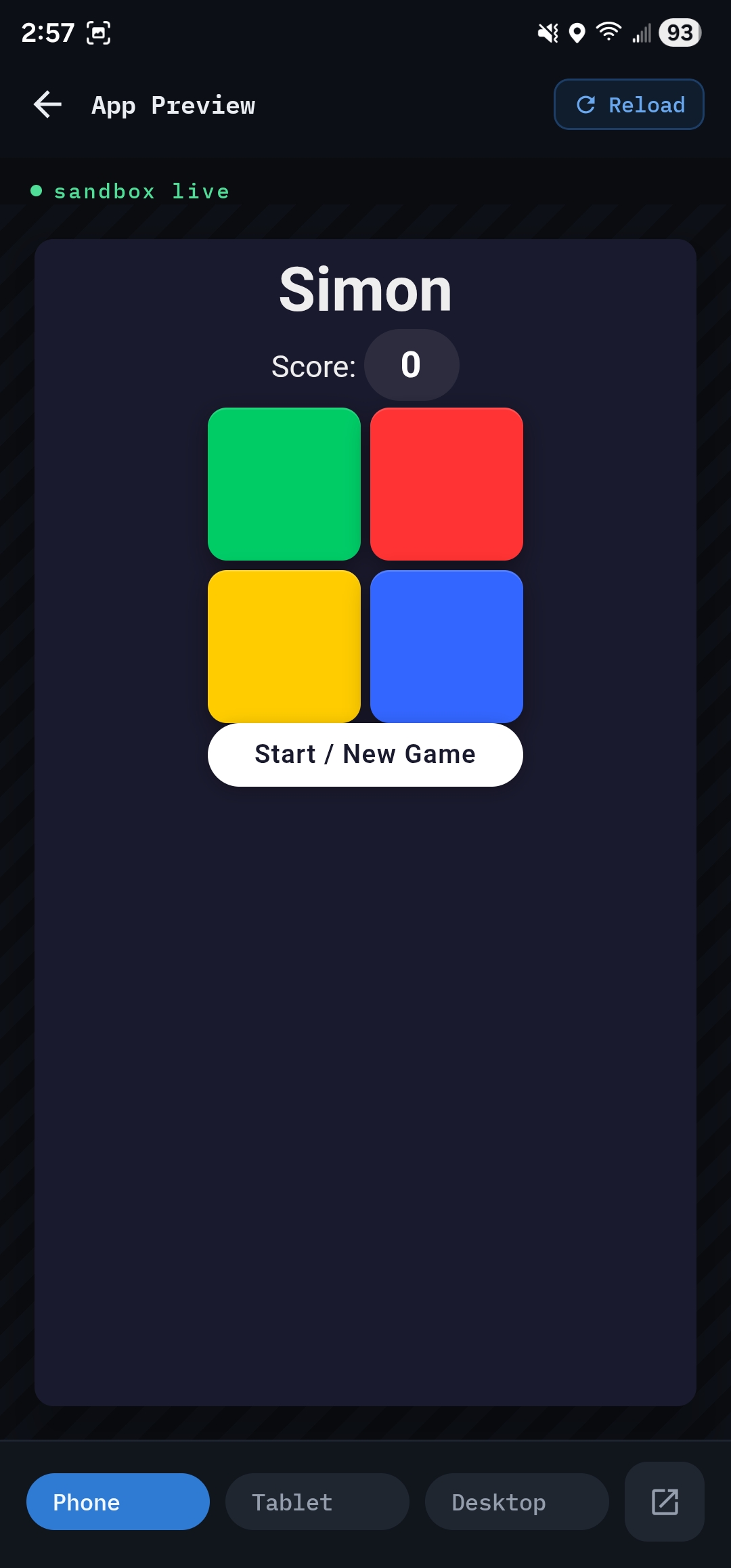
- Phone, Tablet and Desktop at the bottom render the app at 390, 820 and 1280 pixels wide, so you can check its layout at other screen sizes.
- ↻ Reload restarts the app from scratch.
- The open externally icon shares the whole run as a zip, so you can open it in another app, such as a file manager that can unzip it for a desktop browser.
- While the run is live, Add a note is in the header. Spot a bug, describe it, and it's fixed in the next iteration.
If the preview says Nothing to preview — this run produced no HTML entry file, the run didn't produce a web page to open. This is usually because the brief asked for something other than a single-page web app. See Write good requirements.
Export a run#
Tap zip in Output, or Share as zip on the run in History. Your phone's share sheet opens: save the zip to Files or Drive, or send it to another app.
The zip contains one folder named after the run, holding:
- every generated file, in the same tree as Output;
screenshots/, when there are any;token-usage.csvandtoken-usage.txt, a cost and token breakdown;llm-calls.csv, every individual model call.
See Export formats for the column-by-column details. If there isn't enough free space for the archive, the app says so rather than writing a broken zip.
Run the app on a computer#
Unzip the export and open index.html (or whichever HTML file the brief named) in a desktop browser. The bundled projects are plain HTML, CSS and JavaScript with no build step, so there is nothing to install.
View the run log#
Run log (in Output, or View run log in History) lists every event in the run: phase starts and ends, tool calls and errors. You can filter by All, Phases, Tools or Errors. Replay reloads the log from the run's saved events. The log is the best place to look when a run failed.