Launch your first run
Pick a starter project, start the run, answer the check-in, and open the app it built.
With a key added, you can build something. This walkthrough uses one of the bundled starter projects, so you don't have to write anything yet. Expect a small project to take a few minutes per iteration.
1. Pick a project#
- On Home, tap Launch a new run. You can also tap the Hub tab.
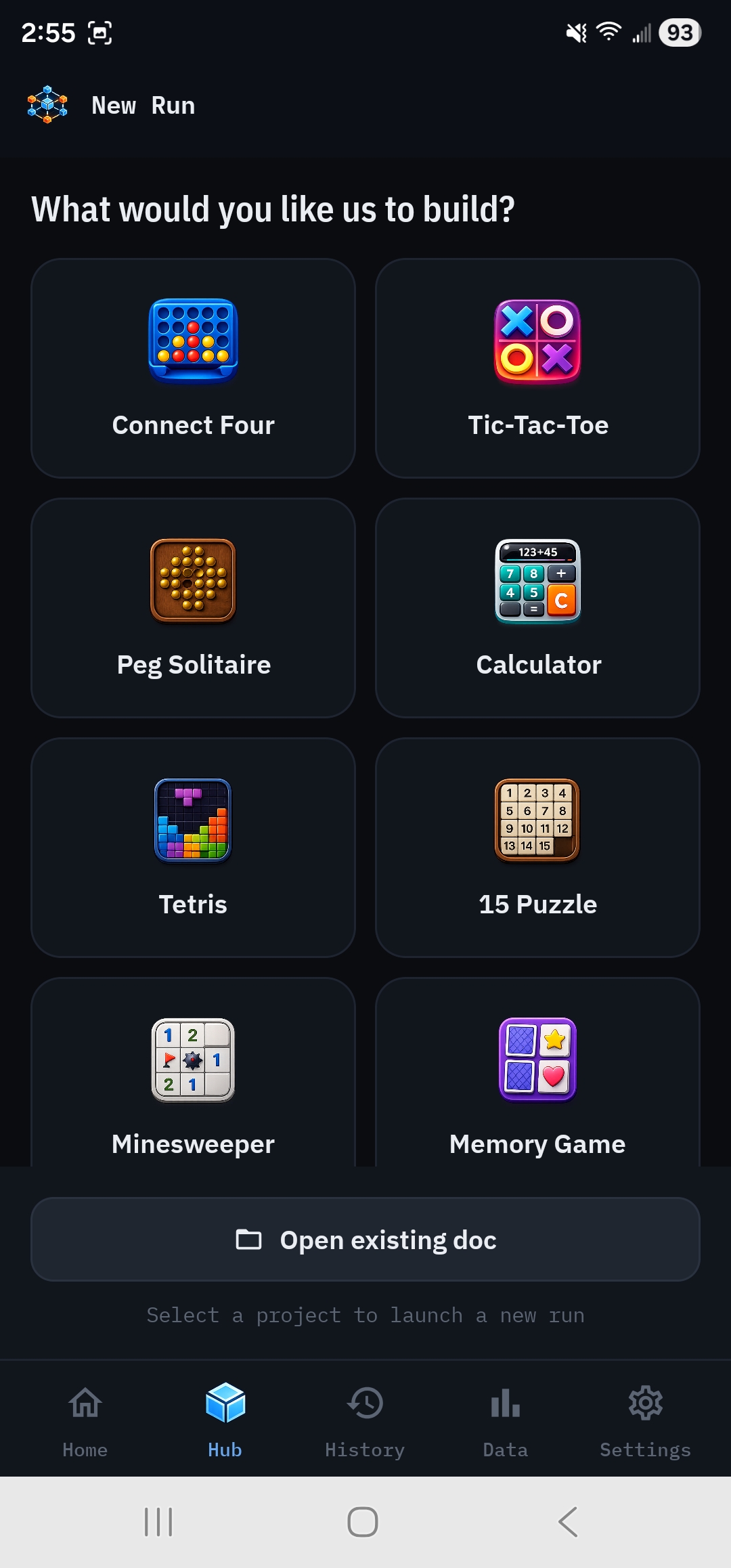
- New Run opens on What would you like us to build?, a grid of 30 starter projects: games like Connect Four, Tetris and Chess, and utilities like Calculator and Pomodoro Timer.
- Tap Tic-Tac-Toe. It's small, quick and cheap, which makes it a good first run.
The project's requirements open on the Requirements tab as a formatted preview. It's a plain markdown document that describes the app, its features and its acceptance criteria. You can edit it with the pencil icon, but leave it as it is for now.
2. Check the configuration (optional)#
Tap Configuration at the top to see how the run is set up: which model each agent role uses, the score the build must reach, and limits on iterations and cost. The defaults are fine for a first run.
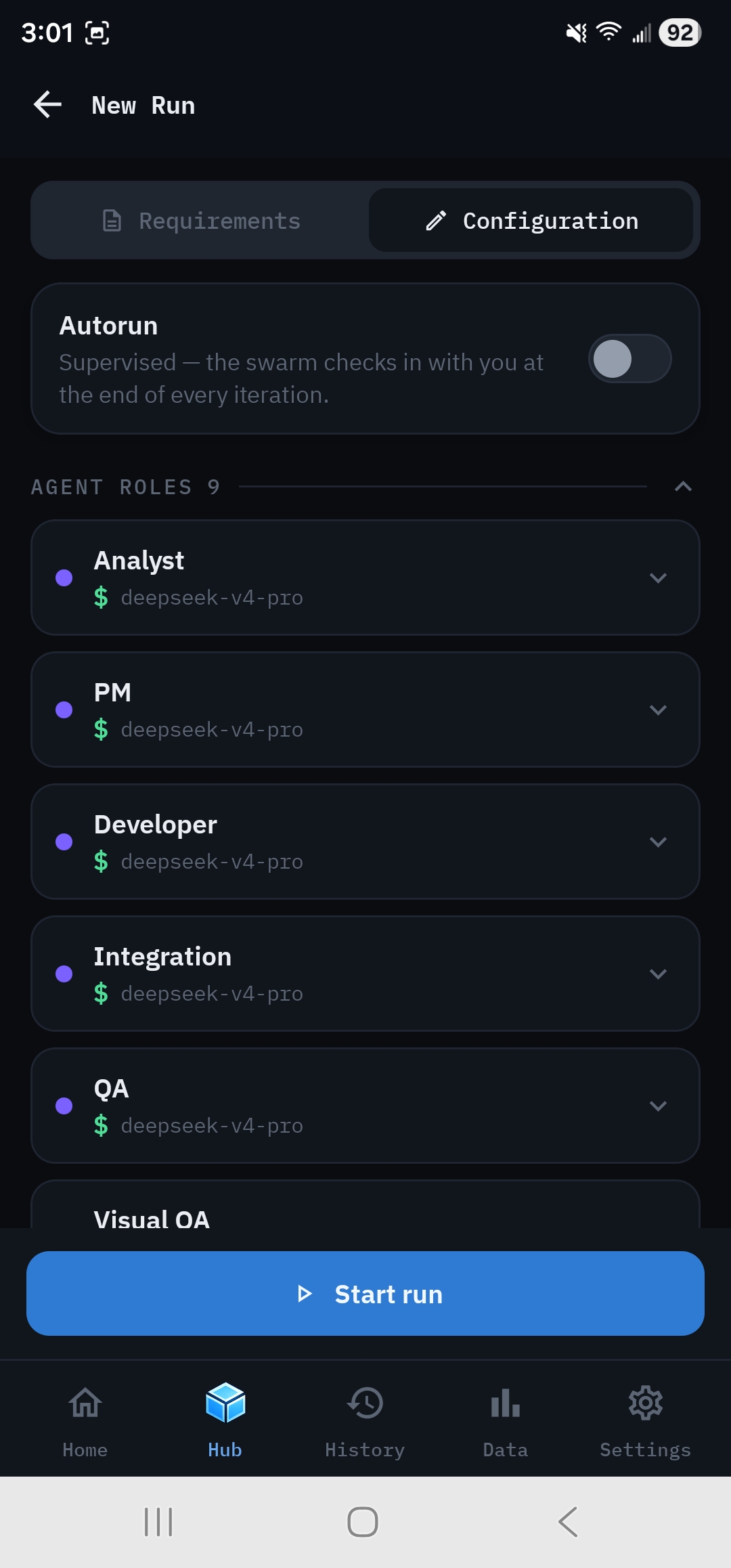
One setting worth knowing now is Max cost, under Orchestration. It's Off by default. Setting it to a dollar amount makes the swarm stop and ask before an iteration that could go over that amount.
3. Start the run#
Tap Start run. If the button says Open Settings instead, a role is assigned to a provider you have no key for; see Starting a run.
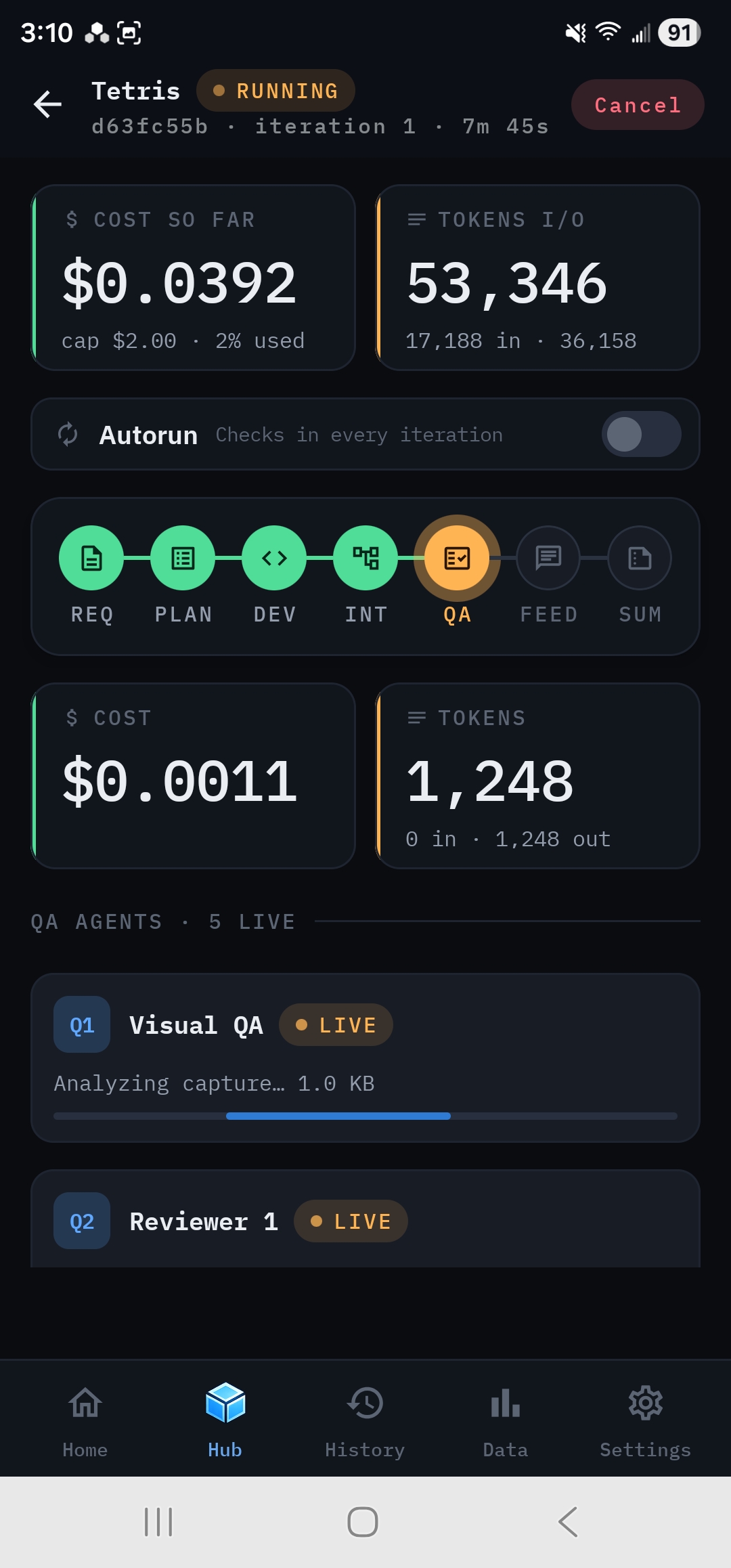
The live dashboard opens. Along the top, Cost so far and Tokens I/O climb as the agents work. Below them, the phase track lights up as the pipeline moves through seven phases:
REQ (Analyst) → PLAN (Project Manager) → DEV (Developers) → INT (Integration Architect) → QA → FEED (Feedback) → SUM (Summary)
You can leave the app while a run is going. On Android it keeps running in the background with an ongoing notification. On iPhone, keep rdn-swarm in the foreground for long runs, because iOS suspends background apps after a short time.
4. Answer the check-in#
When QA and Feedback finish, the first iteration is scored and the swarm checks in with you. The card shows the score against your threshold, what the iteration cost, and any critical or major issues.
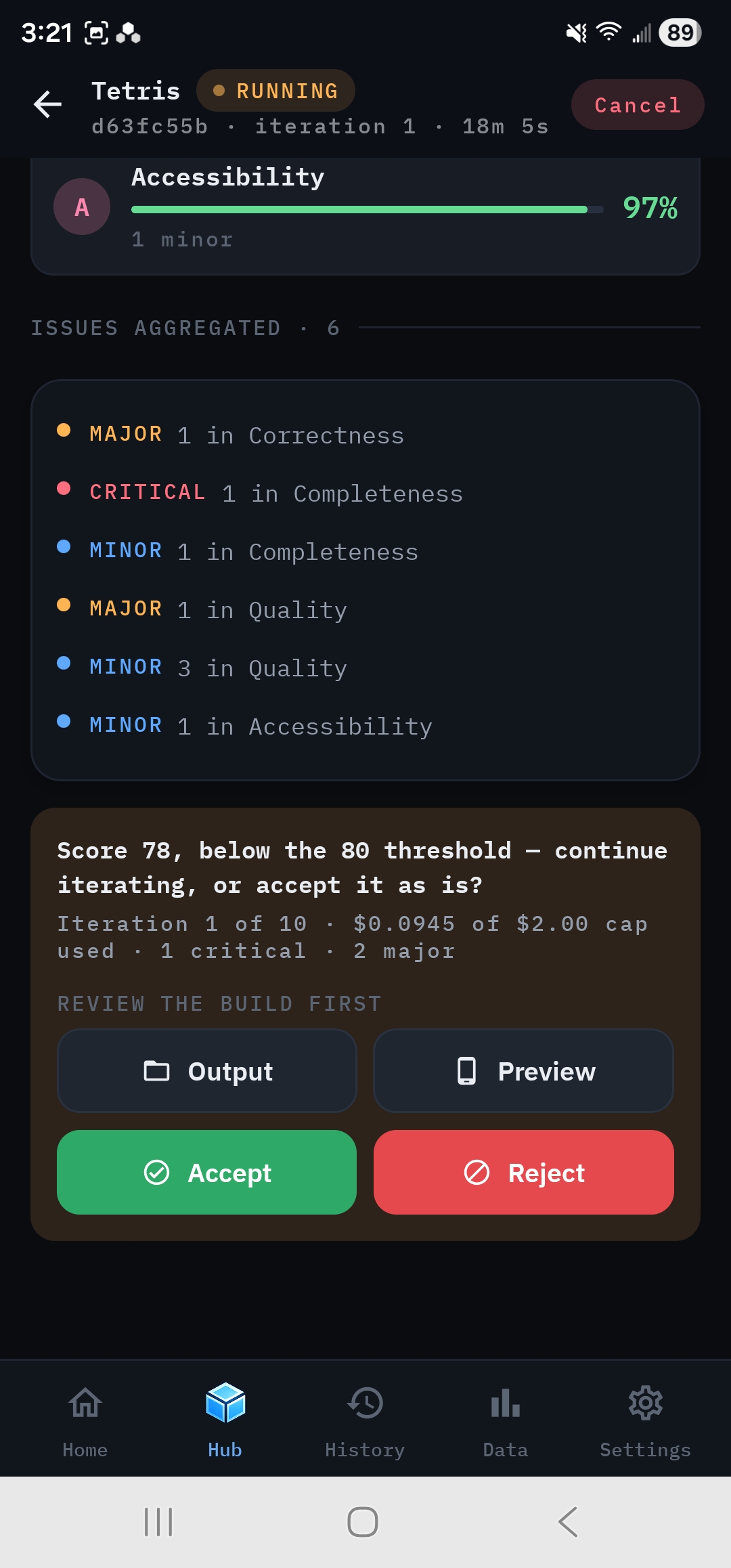
Before deciding, tap Output to see the files or Preview to try the app. Then:
- Accept stops iterating and moves on to the Summary.
- Reject runs another iteration, in which the developers fix the issues QA found.
- Continue with a note runs another iteration and passes along your own instructions, for example "make the X and O marks larger".
For a first run, tap Accept once you're happy with what you see.
5. See what you built#
The Summary agent writes a README of what was built. The finished dashboard shows:
- the final score and a verdict such as Successful,
- the Quality Scorecard across five dimensions,
- the README, and cost and token totals.
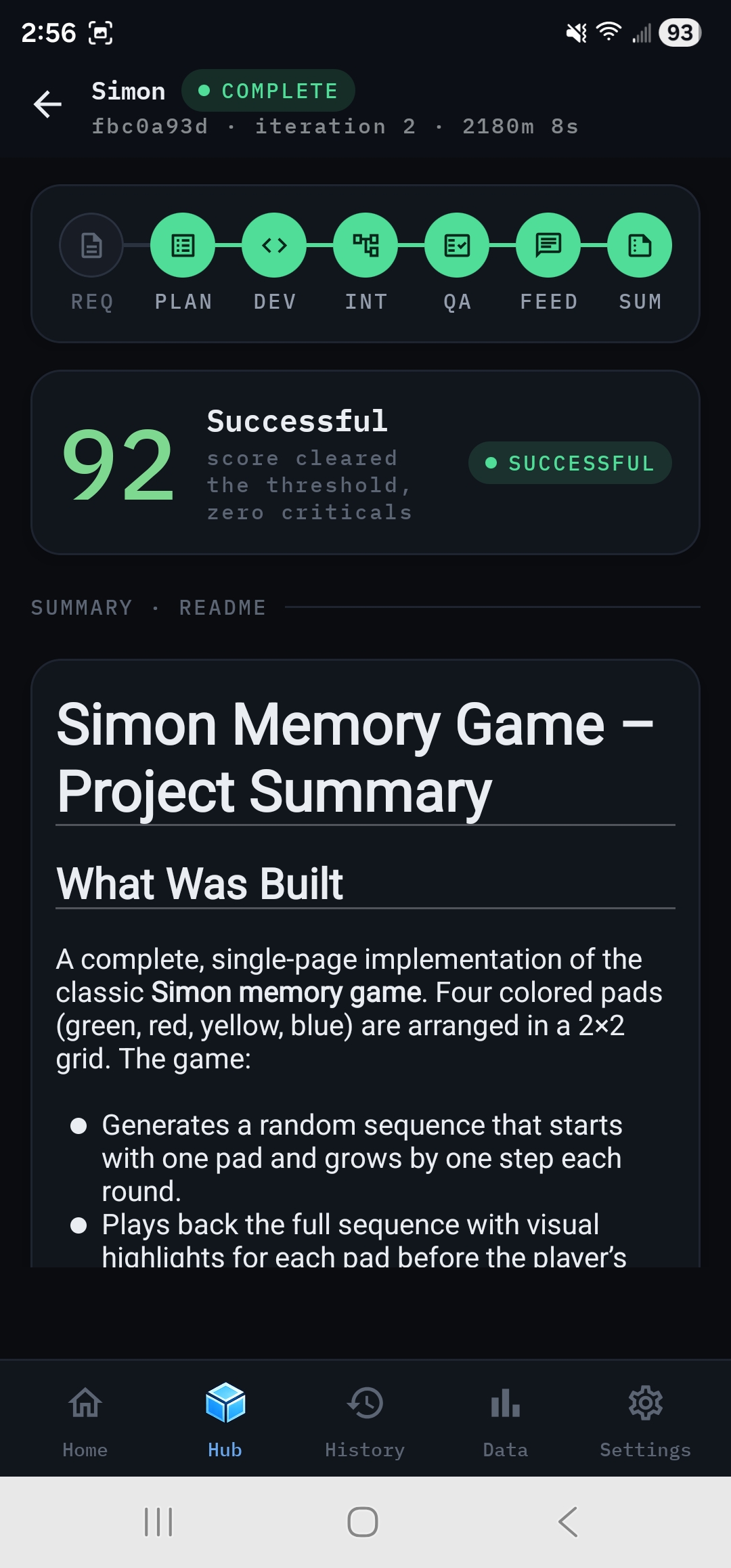
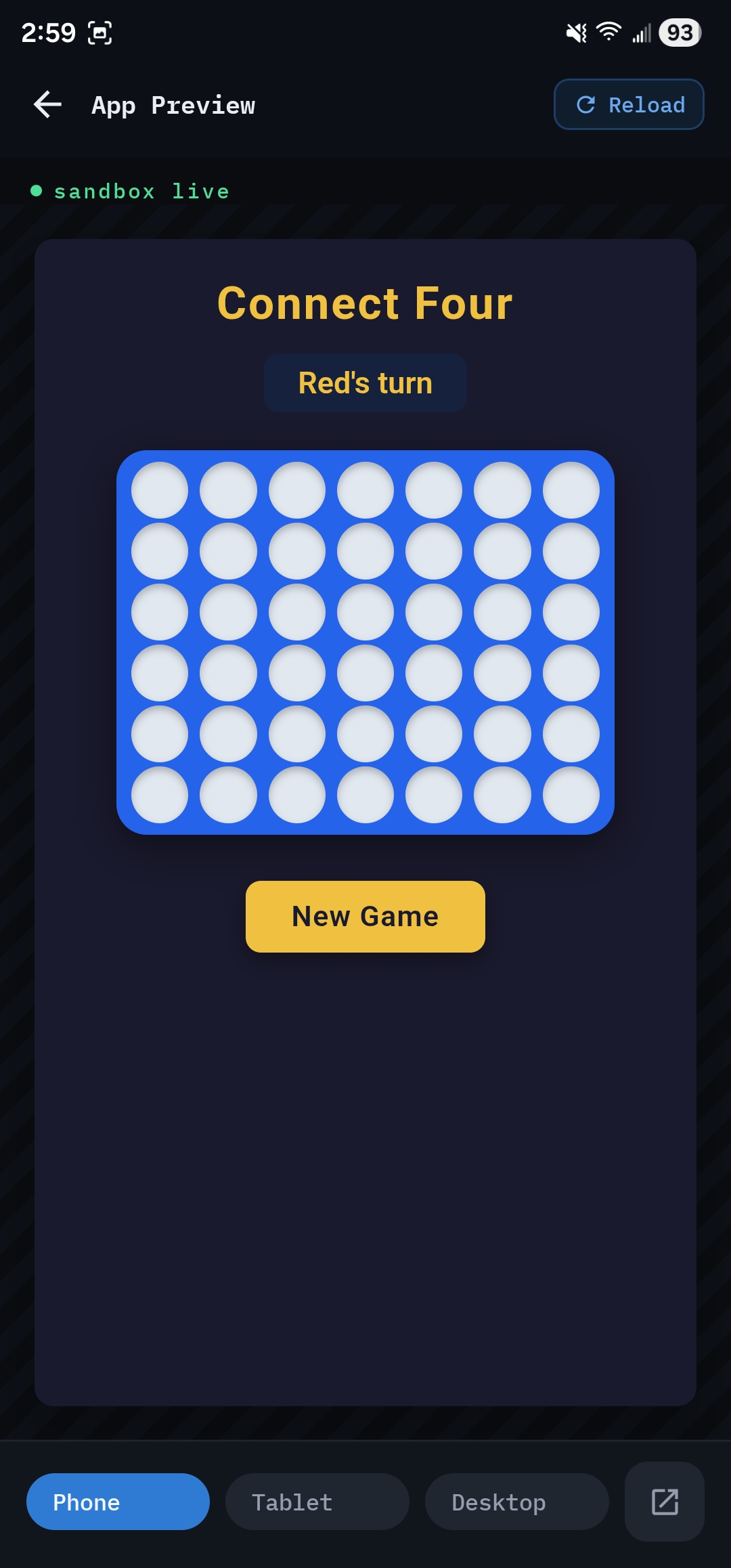
Tap Open preview to play the app on your phone, or Output to browse its source files. From Output you can also export the whole run as a zip.
Where to go next#
- Build your own idea: Write good requirements, or refine an idea with the Analyst.
- Understand the loop you just ran: How rdn-swarm works.
- Make runs cheaper or better: Configure a run.