Manage keys and the model catalog
Add more providers, remove a key, sync models and override pricing.
This guide covers adding more providers, replacing or removing a key, keeping the model list current, and correcting a model's price.
Add another provider#
- Settings → tap the provider → Paste your key → Validate. The steps are the same as for your first key.
- A new key changes nothing about who does what. Only your first key assigns roles. You'll see Key saved: No agent role uses Qwen yet. Remember to assign it a role in New Run, Configuration. Open New Run → Configuration and point one or more roles at the new provider.
Replace a key#
Paste the new key on the provider's page and tap Validate. The new key replaces the stored one.
Remove a key#
On the provider's page, tap Remove key from this device, then Remove. The key is erased from the phone. Any role still assigned to that provider needs a key again before you can start a run; Start run turns into Open Settings until you add one or move those roles.
Keep the model list current#
The catalog refreshes from Rdn Labs' price feed every time the app launches, so you rarely need to do anything. To refresh by hand:
- Settings → Model catalog: pick a provider tab and tap Sync, or
- a provider's page in Settings: tap Refresh model catalog.
A provider's page also shows Models available and whether its Catalog is Synced.
Override a model's price or limits#
If a provider changes its prices before the feed catches up, or you have negotiated rates, you can correct any model yourself.
- Open Settings → Model catalog and choose the provider's tab.
- Each row shows the model's Context, In / 1M and Out / 1M prices. Tap the pencil on the row.
- Edit Input $ / million, Output $ / million, Context window (tokens) and Max output tokens, then tap Save.
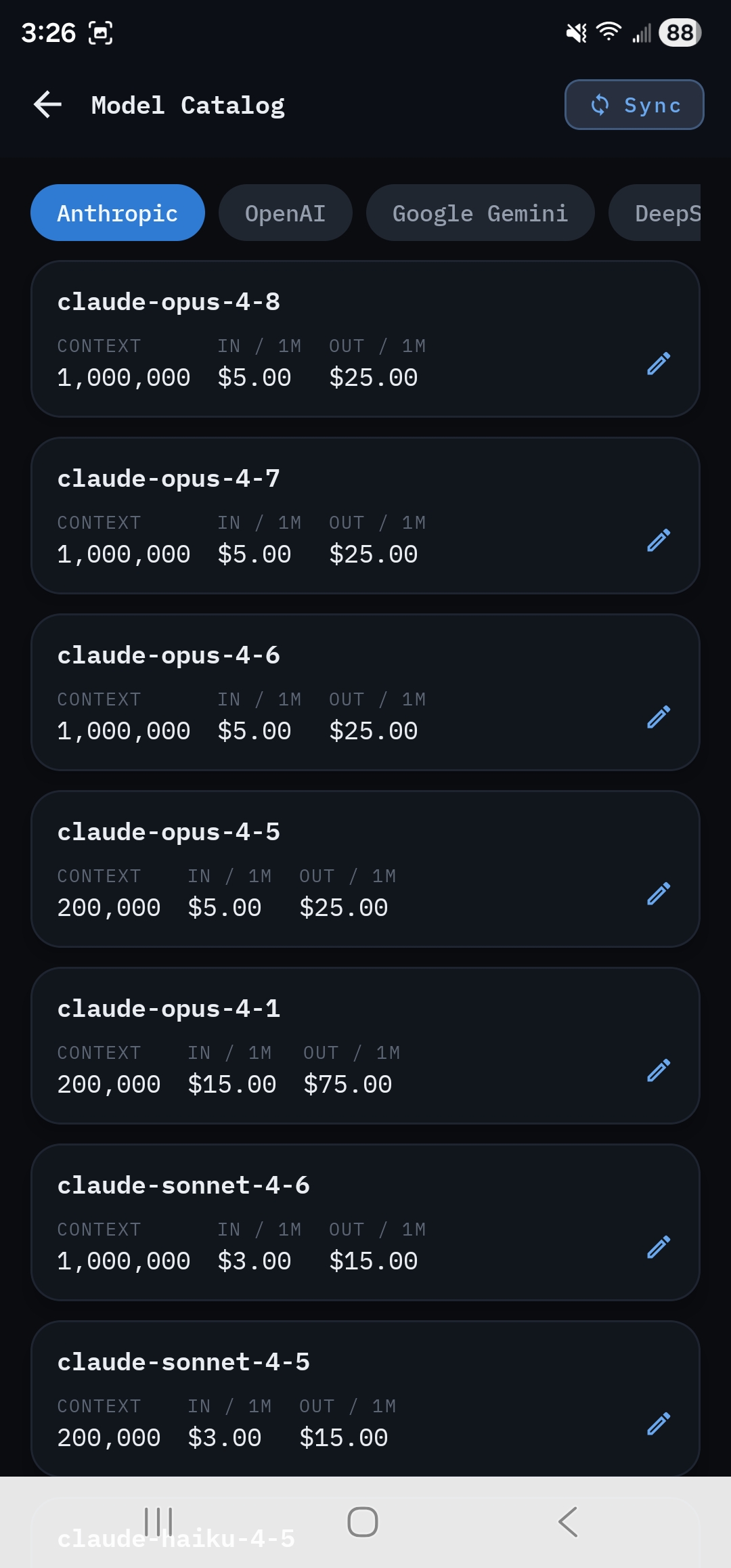
The row is marked Edited. Your values:
- feed the live cost meter and every future run's cost;
- set the cost tier (
$to$$$$) shown in the role pickers; - survive every catalog refresh, because overrides always win over the feed.
Runs that have already finished keep the cost they were recorded with.
Change how the app looks#
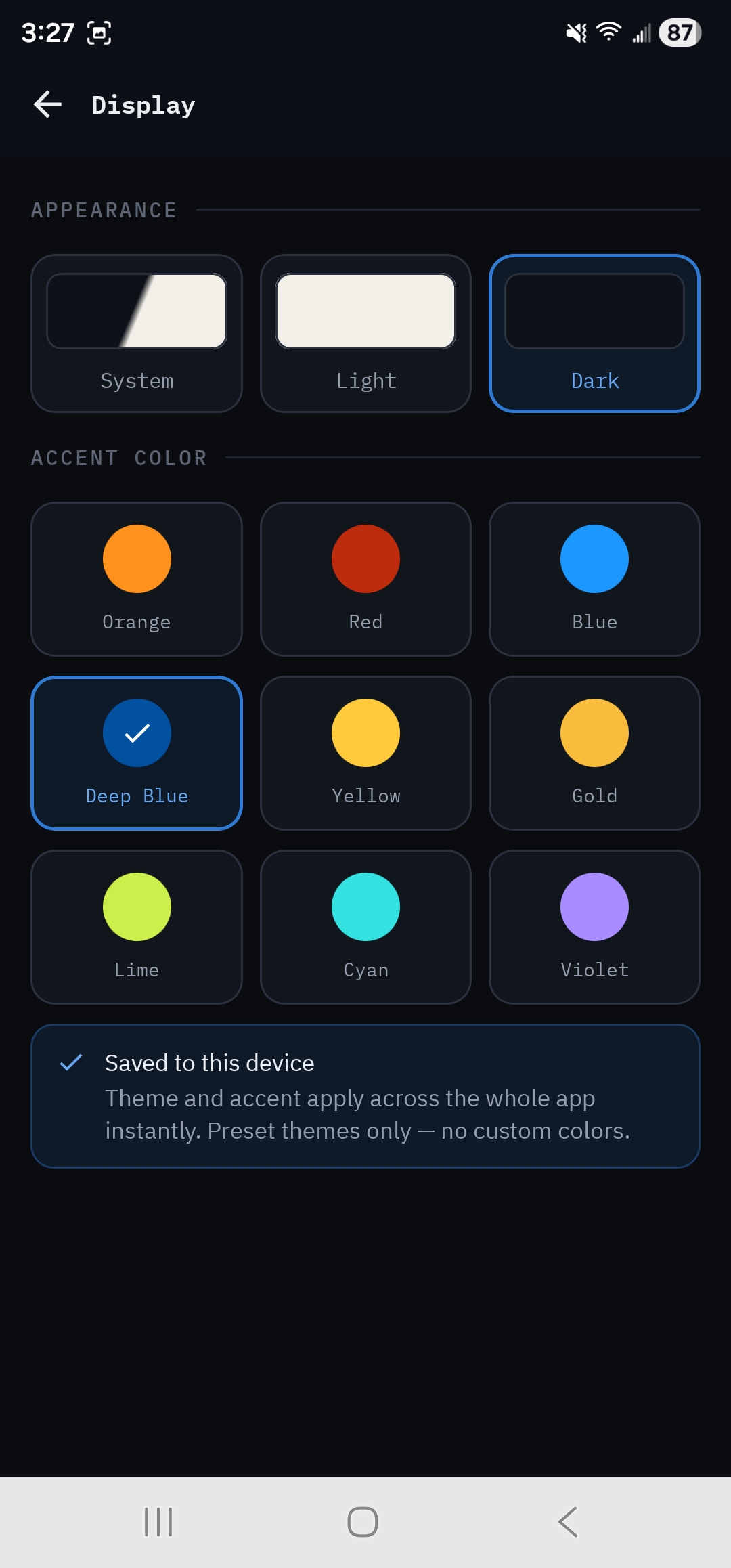
Settings → Display: choose System, Light or Dark, and one of nine accent colors (Orange, Red, Blue, Deep Blue, Yellow, Gold, Lime, Cyan and Violet). Changes apply across the app at once.