Add your first API key
Get a key from an AI provider, paste it into Settings, and validate it.
rdn-swarm uses your own API key to call an AI provider on your behalf. This is often called bring your own key. One key is enough to run every agent. This page covers getting a key and adding it to the app.
1. Get a key from a provider#
Pick any one of the eight supported providers. If you're unsure, pick one you already have an account with. An API key is separate from a chat subscription: ChatGPT Plus, Claude Pro, X Premium and similar plans don't include API access.
- Where to create a key
- console.anthropic.com
- What to know
- Add billing or credits, then Settings → API Keys.
- Where to create a key
- platform.openai.com
- What to know
- Separate from ChatGPT. Verify email and phone, add billing, then create a key.
- Where to create a key
- aistudio.google.com
- What to know
- Create a key with your Google account. A free tier exists; paid use needs a linked Cloud billing project.
- Where to create a key
- platform.deepseek.com
- What to know
- Create a key. New accounts get starter credits; top up when they run out.
- Where to create a key
- console.x.ai
- What to know
- Create a key. New accounts get starter credits; add more under Billing.
- Where to create a key
- ai.developer.meta.com
- What to know
- Needs a Meta developer account. The hosted models are the Muse family.
- Where to create a key
- platform.kimi.ai
- What to know
- Use the international platform. A key from the China (.cn) platform is rejected.
- Where to create a key
- home.qwencloud.com
- What to know
- Complete your payment information to unlock the free quota. Keys are region-specific: a key from another region fails as an "incorrect API key".
Copy the key when the provider shows it. Most providers only display it once.
2. Paste it into the app#
- Open Settings. The Providers section is a grid of all eight providers.
- Tap the provider you got a key from. Its page shows the API host it talks to and a No key status.
- Tap Paste. The app reads the key from your clipboard and saves it straight away. You can also type into the key field and tap Validate.
- Tap Validate. The app sends a small request to the provider to confirm the key works.
When it works, the note under the buttons reads Connectivity verified and the status at the top changes to Connected.
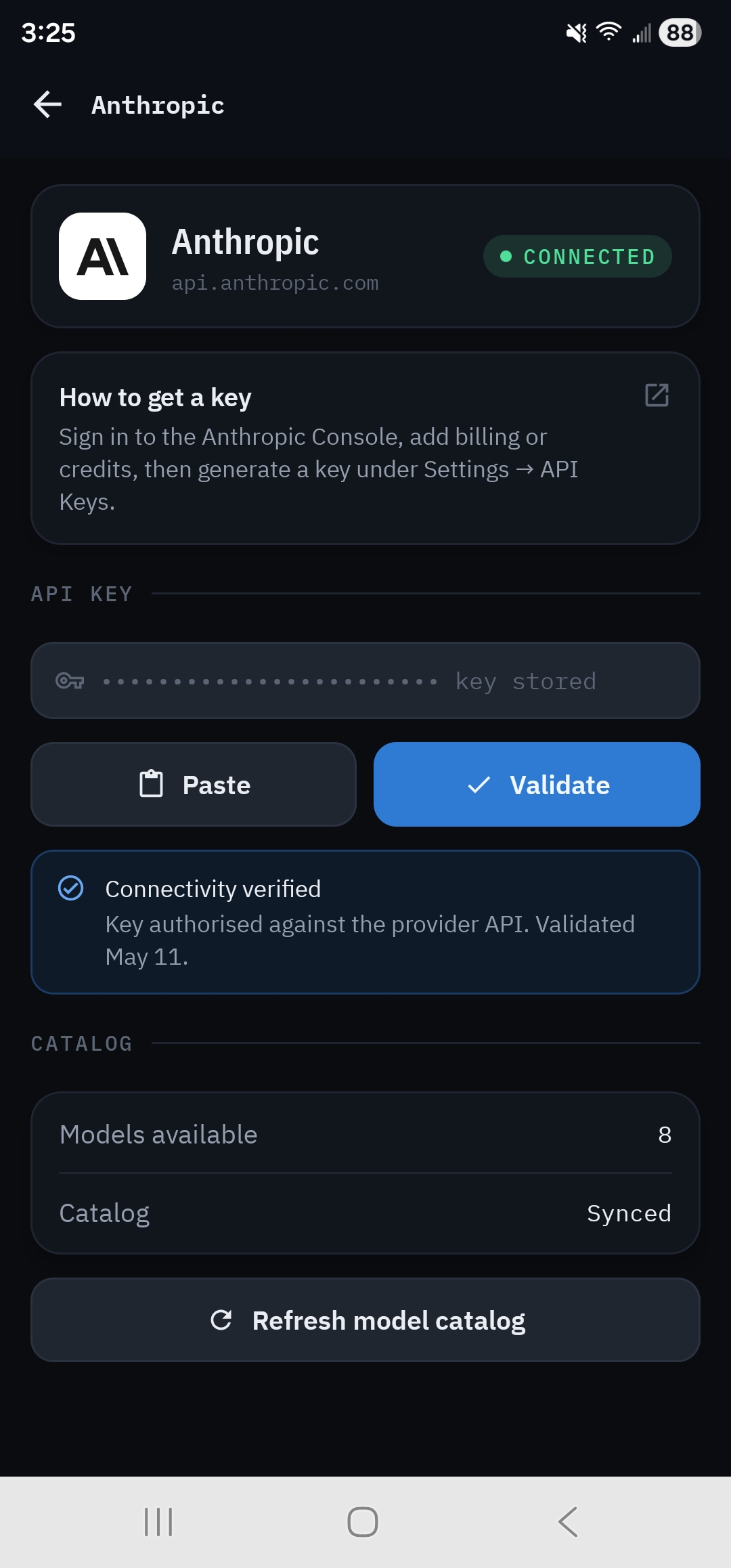
If you see Provider rejected the key or Validation failed, see Keys and providers troubleshooting.
3. Your agents are assigned for you#
rdn-swarm has nine agent roles, such as Analyst, Developer and QA. Your first key assigns all nine roles to that provider, using its starter model. Keys you add later never change your roles. A card on the provider page tells you what happened, for example: All 9 agent roles now use DeepSeek (deepseek-flash).
You can change any role's provider and model later under New Run → Configuration. Adding another key never moves work around; instead the app reminds you to assign the new provider a role.